Content warning: depression, suicide
Matthew Roche recently blogged about his struggles with mental illness. I applaud his courage, because it’s easy to worry what people will think about you. More recently, a member of the SQL Community took her life, and frankly the thought scares the shit out of me. It scares me, because some day that could be me. In fact, it’s been a recent point of discussion with me and my wife.
I write this post because I hope that if you are struggling with these feelings, you will get help. Please do something, because there are people that love you and would be devastated if you left this world. Here is what depression looks like and what I do to stave it off.
What is depression?
The English language does us a disservice in that the word for what is a crippling mental illness is the same word we use casually for being bummed out or sad. And while there is a spectrum, with there being things such as dysthymia or anhedonia (lack of pleasure), depression is often accompanied with what are called cognitive distortions.
If you think “I’m a failure”, that is a cognitive distortion, that is just factually wrong. You may have failed at a thing, but we are multifaceted, changing people. Depression is a matter of being disconnected with the reality at hand.
So what does the difference look like? We all get sad sometimes. Sadness is a good thing, grief is a good thing. These are healthy responses to difficulties in life. Victor Frankl, when writing about being in a concentration camp wrote, “An abnormal reaction to an abnormal situation is normal behavior” . To never feel sadness or grief would be abnormal.
Here is a picture of what healthy grief looks like:

Depression is very different. It is an auto-immune disorder of the mind. It is very commonly accompanied with negative thoughts that are pervasive, persistent and pessimistic. Common themes are feelings of helplessness, hopelessness, worthlessness, and suicidal ideation.
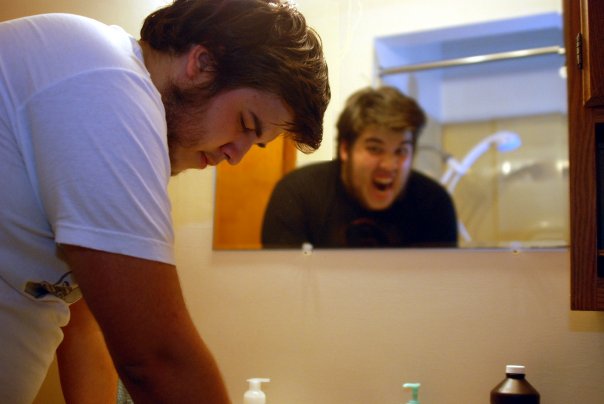
Here is a picture of what depression feels like:
If you are uncertain if you are depressed, take this depression checklist. It’ll take 5 minutes and may reveal something you are uncomfortable admitting. I took it just took it now, and today I am a 14 out of 100, or mild depression. There have been days when it’s been in the mid 30’s, or moderate depression.
Open Source Mental Health performed a survey of 1570 people in technology. Of those who answered the questions, 78% indicated they had a mental illness and around 70% of those indicated that they had a mood disorder such as depression or bipolar. We work in a field that often requires us to be on call or can make stressful demands on our lives. It’s more common than you might think.
It needs treated
I have a disease that requires daily treatment and medicine. My body doesn’t produce the chemicals I need. If I don’t treat it on a regular basis and monitor myself, someday I might die. That disease is called diabetes.
That’s right, I take insulin because my body stopped producing it years ago. I don’t think of myself of weak or less than because my body doesn’t work the way it should. Depression is often the same. Something has gone wrong in the brain. It could be a chemical imbalance, traumatic childhood events, or just a naturally lower set point for mood.
Whatever the cause, it still needs treated. It can be hard to admit and feel like a failing. I’m a guy, and I hate, hate, hate feeling like a burden to anyone. I hate asking for help. So much so, that when I was diagnosed with diabetes in the hospital, I told my now wife that I’d understand if she broke up with me. She just about slapped me. Boy was I dumb.
Get help. Please.
How I treat depression
Here are the ways I treat my depression:
Medication. Every single day, I take 10mg of Lexapro. I avoided it for a long time, I’ve heard horror stories about psych meds. I tried everything else, but eventually I decided I needed to take medicine.
The first month was hell and it takes 6 weeks to kick in. I had dry mouth and wanted to crawl out of my skin. After that my body acclimated, and the bleaker side of depression went away. I didn’t feels as dark and lethargic and hopeless. I still had negative thoughts and burnout, but I didn’t feel hopeless anymore. Many people have to try multiple medications to find one that works for them.
Exercise. The second most effective thing I’ve found to treat my depression is exercise, especially cardio exercise. I have to exercise every day, even if I’m sick. If I go a week without getting exercise, I start to get a resumption of symptoms. Exercise is as important as any of my other medications.
Sleep. Sleep is massively critical to good mental health. Sometimes I track my negative thoughts using a tally counter. A bad night’s sleep can double the number of negative thoughts I have in a given day. You wouldn’t give a SQL server 4 gigs of ram, why would you give your brain 4 hours of sleep and expect it to function properly.
Light. I hate the winters in Pittsburgh. It’s dark when you leave for work and it’s dark when you come home. I feel my symptoms most severely during the winter time. To deal with that I have lights everywhere. I have light alarm clocks, I have blue therapy lights to blast 1000 lux at my eyes and wake me up. I’ve even put hue lights in my room so my whole room lights up in the morning. The most effective thing is to just go outside, however.
Cognitive Behavioral Therapy. One of the most effective therapies is Cognitive Behavior Therapy. In short it identifies that it’s not just events that cause our emotional reactions, but also our beliefs about them. If you partner, come home late you could happy or sad depending on your beliefs.
CBT can be learned from books and I’ve found it to be effective. It feels a lot like having to catch your negative thoughts and then do a complex algebra problem, but I’ve gotten much better at labeling my automatic negative thoughts.
Meditation. Something new I’m trying is meditation. Those negative thoughts, or ruminations, can be hard to catch sometimes. They are like little mosquito bites. Independently, very small. But if you have 150 mosquito bites in a day, they add up. Meditation helps me catch myself and implement the CBT. I use the 10% Happier app and recommend the audio book. It’s fantastic and totally secular, if that’s your preference.
Biofeedback. Sometimes I count my negative thoughts with a physical tally counter. I think this week it was something like 30 -> 26 -> 22 -> 6 -> 7 -> 5 . I’ve had days where is was between 100 and 200. That’s a negative thought every few minutes.
I found that when I actually count them, I make more of an effort to catch myself and think healthier thoughts. Instead of thinking “I’m a failure” I think “I feel embarrassed.” Instead of thinking, “I hate myself”, I think “I feel scared and socially anxious.”
Social interaction. Depression is an isolating disease and IT can be an isolating job. Social interaction get’s us out of our heads and can be a source of support. Even just being at the library and near people can be helpful.
Talk therapy. While I’m not currently in therapy, I was for a while. I found it useful to be in a non-judgmental environment and have someone else I could bounce things off of.
Summary
While I have been in no way cured, there are a number of things I do to treat myself. There are a multitude of options you can take and a plethora of resources out there. Some of them may not work, but many of them are worth trying.